🚴♂️💨 Exciting Progress on My London to Amsterdam Ride for The Children’s Hospitals Charity! 🏥💖
I’m thrilled to share that, with your incredible support, I’ve raised £1090 towards my £2100 goal! 🌟 Your generosity is making a real difference, and as I gear up for the final stretch with just over two months to go, I’m more determined than ever to reach our target.
The journey isn’t over yet. I still need your help to cross the finish line and make a lasting impact for the children and their families. 🙌 Let’s make these next two months truly count!
Share: Help spread the word! The more people who know about our mission, the greater the impact we can achieve together.
Encourage: Your words of encouragement fuel my ride. Leave a message, share our mission, and let’s keep the positivity rolling!
With your continued support, I’m confident we can hit that £2100 target and contribute significantly to The Children’s Hospitals Charity. Together, we can make a world of difference! 🌈🚴♂️
I got thinking the other day about how much I hate logging into vSphere Web Client/vSphere Client. In a large environment with different SSO domains, you end up wasting 10 mins logging in. So, thinking about work while trying to sleep, I made a note to look into launching VMRC from PowerCLI Core on my Mac.
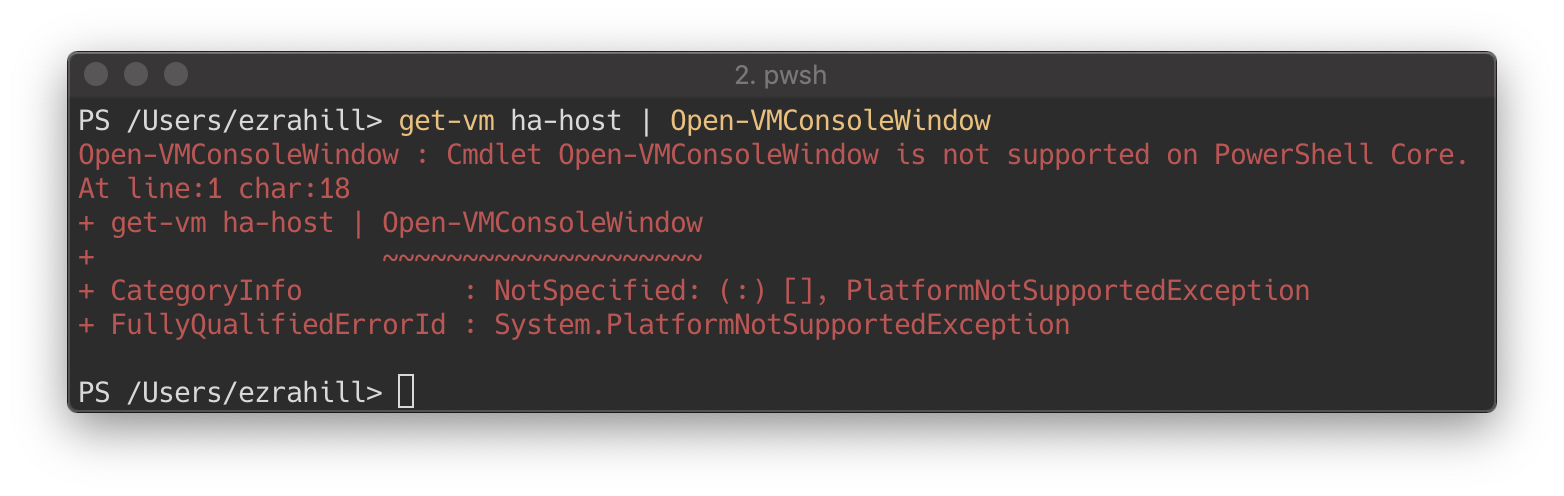
Being a Mac user, I will pretty much do anything in my power not to have to jump to a windows box, and as it turns out, the Open-VMConsoleWindow cmdlet is not supported within PowerShelll Core.
Not supported on PowerShell Core
Yes, I could jump to another machine, but seriously, that is a pain, so I did a search thinking’s Python might be the only way also, would be helpful as I need to knuckle down and up my game on the Python front. I have a hard time creating anything in Python when there is no real requirement, apart from skilling up ….
Understand
To start the process, I did a Google search and came across an article by Roman Dodin, unfortunately, his post is no longer available. The VMRC link looks something like:-
With that info, what I thought was going to be more complex ended up being super easy, you can craft the URL yourself and use PowerShell.
Design
So recently, I have been building up a “Toolkit” which essentially is a PowerShell module with many cmdlets to make my day to day tasks a whole lot easier, and this function will fit perfectly.
As I have made the function to go into my Toolkit module, there are a couple of things to bear in mind.
My credentials are stored in a variable called $Creds
A connection is already established with a ESXi Host or vCenter server.
To keep things nice a simple, I had two requirements for the function:-
Must accept pipeline input Get-VM test01 | Open-VMRC
Must accept VM name parameter Open-VMRC test01
With the knowledge of the link construction I will use following variables:-
$vm = “test01”                  # VM Name
$vmID = 320                     # MoRef ID
$vcsa = “vc01.lab.local”        # vCenter or ESXi Host
$creds = Get-Credentials        # Credentials for access
$url =                          # Crafted URL depending on target
Steps
To get things started, I needed to find a way to launch the URL. I’m sure there are a few ways to tackle this, I choose to use theStart-Process cmdlet.
Next, we need to assign the $vcsa variable the currently connected VI Server session which is stored in a global variable.
$vcsa = $global:DefaultVIServer.Name
We need a VM object so we can get the MoRef ID. Lets now check if $vm is a PowerShell object or a string, if a string assign a VM object.
if ($vm.GetType().Name -eq "String")
  {
      $vm = Get-VM $vm
  }
Now we have the VM object, we can get the MoRef ID property we require for the URL.
$vmID = $vm.id.Split("-")[-1]
And finally, we have to check the VM object to see if we are connected to a vCenter server or an ESXi host then assign the $url variable the appropriate value.
Many improvements can be made, but for a quick win, it ticks the box. I really hope you have gained something from this article. The complete code can be found on GitHub.
I am currently working towards obtaining the VCIX6-DCV certification from VMware. Currently I hold the VCAP5-DCD certification and in order to gain the VCIX6-DCV certification I need to pass the VCAP6-DCV Deployment exam.
While starting the study process I searched the web looking for books on the subject but none are yet to be published. What I did find was couple of blogs mentioned below that are working through the exam blueprint to create study guides which I hope will be a massive help going forwards.
This post will serve as a goto place for all the study resources used on my journey to VCIX6-DCV.
On 30th June 2014 VMware announced the release of two new beta programs and instead of being private they are in fact open betas. This means everyone can signup and have a play.